JPG Input
Accepts JPG and JPEG images directly for icon conversion.
JPG to ICO
This page is built for one focused workflow: converting JPG to ICO in the browser with predictable icon sizes and private local processing.
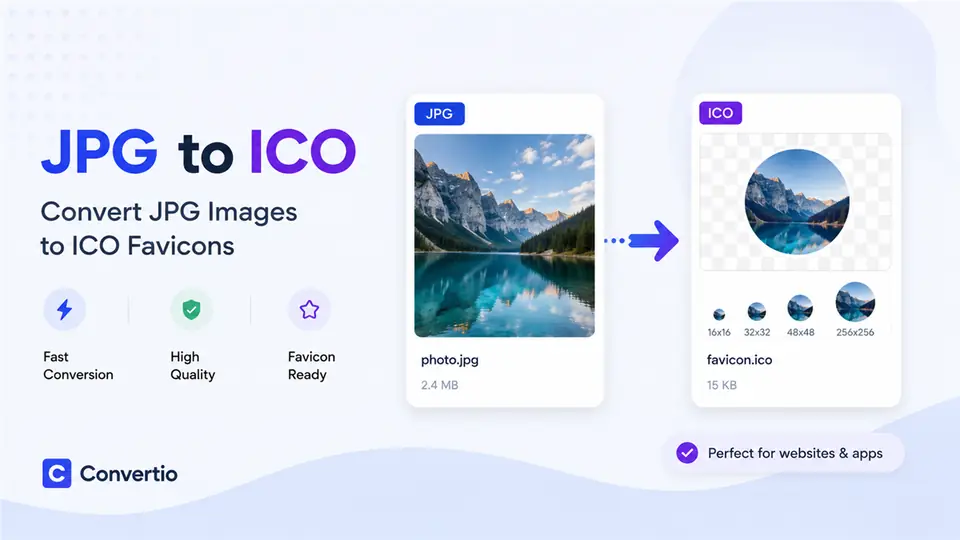
Accepts JPG and JPEG images directly for icon conversion.
Generate common favicon and application icon sizes from one JPG.
Convert JPG to ICO locally without sending files to a server.
Crop or adjust the JPG before creating the final ICO output.
Convert JPG to ICO without registration.
JPG processing stays in your browser.
Crop and adjust the source before conversion.
Generate several ICO sizes from one JPG.
JPG to ICO conversion turns a standard JPG or JPEG image into an ICO icon file that can be used by browsers, Windows shortcuts, desktop applications, and many older icon workflows. A JPG image is usually a flat photo or exported logo without transparency, while an ICO file is a container designed for icons. This page focuses on one task only: converting JPG to ICO. Keeping the page centered on JPG to ICO helps users who already have a JPG source understand the exact workflow, limitations, and output choices without mixing in unrelated formats.
Use JPG to ICO when your source artwork is already saved as a JPEG file and you need a quick icon for a website, internal tool, prototype, desktop shortcut, or lightweight application. JPG is common for photos, screenshots, exported mockups, and simple brand marks. Because JPG does not carry an alpha channel, the resulting ICO will not include true transparent edges unless the image is edited before conversion. For clean icons, start with a square JPG, keep the subject centered, and avoid tiny details that may disappear at 16x16 or 32x32 pixels.
The converter loads the JPG in your browser, previews it, lets you choose icon sizes, and draws the image into square canvases before packaging the output as ICO files. Common sizes such as 16x16, 32x32, 48x48, 128x128, and 256x256 cover most favicon and Windows icon needs. Smaller sizes should be visually simple, while 128x128 and 256x256 can preserve more detail. The conversion is local, so the JPG file stays in the browser session instead of being sent to a server.
For the best JPG to ICO result, use a high-resolution square image, crop the subject before conversion, and test the icon at the smallest size you plan to publish. Avoid low-contrast images, busy backgrounds, thin text, and photographic detail that becomes unclear at favicon scale. If the icon will appear on different backgrounds, consider preparing a clean image with enough padding. After downloading the ICO files, use the 16x16 and 32x32 versions for favicon support and larger sizes for application or shortcut icons.
Your JPG file is processed locally in the browser and is not uploaded to a server.
Recommended favicon sizes: 16x16, 32x32, and 48x48 pixels
Your JPG-based ICO files have been generated
JPG does not support transparency. Use a transparent PNG if you need transparent icon edges, or add a solid background before exporting ICO.
Photos and busy backgrounds lose detail at 16×16. Crop to a clear subject, add contrast, and preview 16×16 and 32×32 before downloading.
Yes. JPG and JPEG files are supported because they are the same common photo format.
JPG can work when the subject is simple and high contrast, but transparent logos usually work better as PNG or SVG sources.
Choose a solid brand color or neutral background because JPG has no alpha channel. Rounded or square backgrounds usually read better at small sizes.
The conversion workflow runs in your browser so your JPG stays on your device.
JPG to ICO makes favicon handoff fast. The size options are clear and I do not need a desktop editor for small updates.
Alex Chen / Product DesignerBatch ICO generation saves time, and the exported files are easy to drop into a project for testing.
Mia Parker / Frontend DeveloperThe interface is straightforward and the conversion output is consistent for side projects and SaaS icons.
Noah Lee / Indie MakerI can turn brand artwork into launch-ready favicon files directly in the browser.
Sophia Green / Brand ManagerThe preview and download flow is smooth, and transparent icon edges stay clean.
Emma Wilson / UI DesignerI can refresh a site icon in minutes without installing extra software.
Daniel Kim / Website AdminThe multi-size output works well for browser favicons and Windows shortcuts.
Olivia Brown / Full-stack EngineerThe workflow is simple enough for non-technical teammates to create ICO assets themselves.
Lucas Miller / Startup Founder