Vector Input
Use SVG artwork as the source for crisp icon output.
SVG to ICO
This page is built for one focused workflow: converting SVG to ICO in the browser with predictable icon sizes and private local processing.
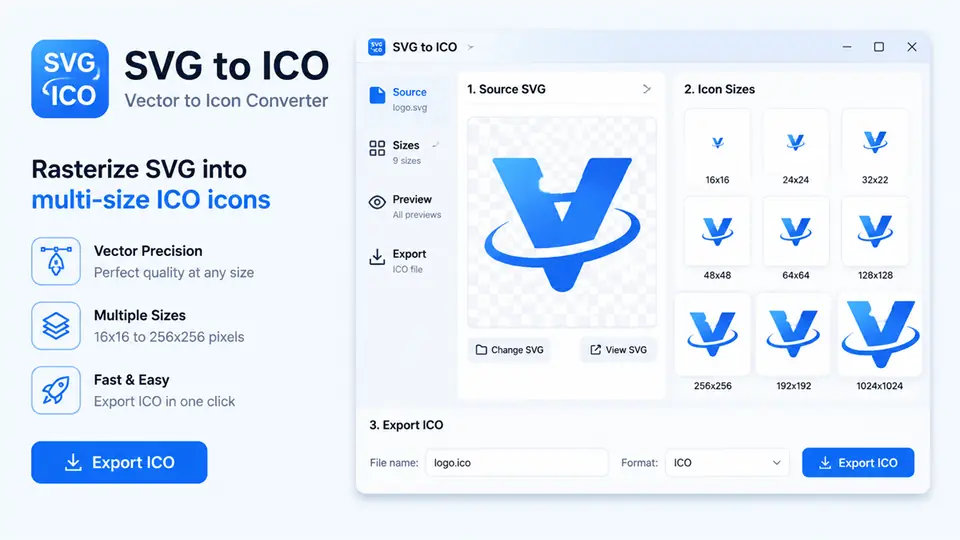
Use SVG artwork as the source for crisp icon output.
Rasterize SVG into common favicon and application icon sizes.
Convert SVG to ICO locally without sending files to a server.
Check the SVG before generating ICO files.
Convert SVG to ICO without registration.
SVG processing stays in your browser.
Start from scalable SVG artwork.
Generate several ICO sizes from one SVG.
SVG to ICO conversion takes a vector SVG file and produces ICO icon files for browser and desktop use. SVG is resolution independent, but ICO is still required in many favicon, Windows shortcut, and legacy application workflows. This page stays focused on SVG to ICO only. It is intended for users who already have vector artwork and need predictable raster icon output without mixing the task with unrelated image formats.
Use SVG to ICO when your logo, symbol, or interface mark is stored as an SVG and must be published as a favicon or Windows-compatible icon. SVG artwork often produces cleaner results than low-resolution bitmap sources because the browser can rasterize the vector at each selected size. The best SVG sources are simple, centered, and readable without fine strokes. Detailed illustrations, long text, shadows, and thin outlines may look good at large sizes but become unclear at 16x16.
The converter loads the SVG in the browser, previews the image, lets you choose icon sizes, and rasterizes the vector into square canvases before generating ICO files. Each selected size is rendered separately, so 16x16, 32x32, 48x48, 128x128, and 256x256 can all be created from one SVG source. Because the conversion runs locally, the SVG file stays in the browser session instead of being uploaded to a server.
For strong SVG to ICO output, simplify the SVG before conversion, remove unnecessary details, and make sure the visual center is balanced. Use a viewBox that frames the artwork cleanly, avoid excessive empty space, and test the smallest favicon sizes first. If the SVG depends on external fonts or remote assets, embed or outline those elements before uploading. After downloading, use small ICO sizes for favicons and larger sizes for app icons, shortcuts, or internal tools.
Your SVG file is processed locally in the browser and is not uploaded to a server.
Recommended favicon sizes: 16x16, 32x32, and 48x48 pixels
Your SVG-based ICO files have been generated
Yes. Upload an SVG logo or icon and the tool rasterizes it into selected ICO sizes such as 16×16, 32×32, 48×48, and 256×256.
The final ICO is raster, not vector. Simple SVG shapes usually stay crisp, while very thin strokes, shadows, and tiny text may need adjustment for 16×16.
Yes. Transparent SVG backgrounds can be preserved when the SVG does not include an opaque background rectangle.
External fonts, remote images, scripts, CSS, or unsupported SVG features may render differently. Use inline shapes, a clean viewBox, and converted text paths for the most reliable result.
Avoid script, foreignObject, external images, remote fonts, remote CSS, and inline event handlers. A self-contained SVG logo is safer and more predictable for favicon output.
The conversion workflow runs in your browser, so your SVG stays on your device.
SVG to ICO makes favicon handoff fast. The size options are clear and I do not need a desktop editor for small updates.
Alex Chen / Product DesignerBatch ICO generation saves time, and the exported files are easy to drop into a project for testing.
Mia Parker / Frontend DeveloperThe interface is straightforward and the conversion output is consistent for side projects and SaaS icons.
Noah Lee / Indie MakerI can turn brand artwork into launch-ready favicon files directly in the browser.
Sophia Green / Brand ManagerThe preview and download flow is smooth, and transparent icon edges stay clean.
Emma Wilson / UI DesignerI can refresh a site icon in minutes without installing extra software.
Daniel Kim / Website AdminThe multi-size output works well for browser favicons and Windows shortcuts.
Olivia Brown / Full-stack EngineerThe workflow is simple enough for non-technical teammates to create ICO assets themselves.
Lucas Miller / Startup Founder